Adopting Node to Somewear Labs Grid
Overview
Covers first-time setup of a Somewear Node: creating your Somewear account, confirming your workspace, and pairing your Node hardware so it starts reporting into Somewear Labs Grid — the web dashboard used to track and manage devices across your organization.
Prerequisites
- A Somewear Node device, charged.
- Somewear credentials. If you haven't received these yet, contact your Apex Edge administrator (or
hello@somewearlabs.comif directed to do so). - A smartphone to install the Somewear mobile app.
Steps
1. Download the Somewear mobile app
- Google Play: search "Somewear" or go to
play.google.com/store/apps/details?id=com.somewearlabs.sw - iOS App Store: search "Somewear" or go to
apps.apple.com/us/app/somewear/id1421676449
2. Create your Somewear account
Open the app, select Get Started, and follow the on-screen prompts. If you don't already have an account, one is created automatically when you sign in.
When asked if you own a hardware device, select NO during initial account creation — you'll pair the physical Node in a later step.
3. Confirm your workspace
- In the app, go to Settings and check your Active Workspace.
- Navigate to Messages and send a test message to your Workspace chat to confirm messages are being received.
- If you're not part of an active workspace, contact your administrator, or see Assigning Node to Group for how workspace membership and device assignment work.
4. Pair your Node
- Make sure Node is off, then press and hold the power button until the LED flashes white, once per second — this is pairing mode.
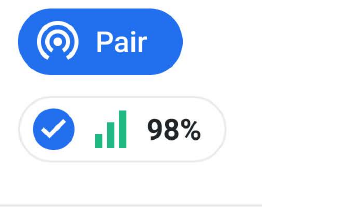
- In the app, tap Pair. Once paired, Node's details appear in the header along with battery and signal strength indicators.
5. Conduct a comms check
Before relying on Node in the field:
- Switch your phone to airplane mode and disconnect from Wi-Fi.
- Test mesh: send a message to your Workspace (with another Node user in range).
- Test satellite: power off all Nodes in range, then send a message to your Workspace.
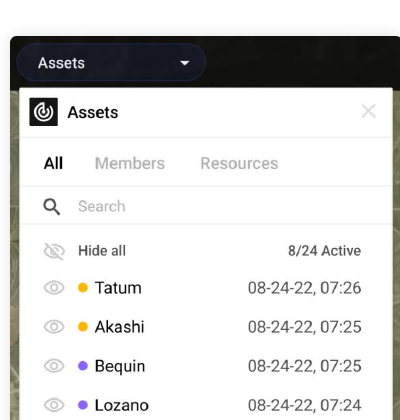
Once paired and confirmed, your Node begins appearing as a tracked asset in Somewear Labs Grid (the web app) — your team can view its position, status, and messages from there. See the Grid Web User Guide (linked below) for details on the web dashboard itself.
Troubleshooting
- Node won't enter pairing mode: confirm it's fully powered off first — holding the power button on an already-on Node just turns tracking on/off, not pairing mode.
- "Not part of an active workspace": contact your administrator for a workspace invite, or see Assigning Node to Group.
- No signal during comms check: confirm Node's logo/antenna side is facing up toward open sky, away from tall buildings or dense foliage.