Assigning Node to Group
Overview
Covers managing workspace membership and assigning a Somewear Node (or Hotspot) to a person, vehicle, or other resource from the Workspace Admin panel — so devices show up correctly labeled for everyone tracking your workspace, rather than as an unlabeled serial number.
Prerequisites
- A Somewear account with Workspace Admin access (device assignment is an admin-level action; contact your administrator if you don't have access).
- The Node already paired and reporting. See Adopting Node to Somewear Labs Grid.
Steps
Join or invite someone to a workspace
- From the main navigation, select Account.
- From the left-hand menu, select Join Workspace.
- Enter the Workspace Name and Workspace Key for the workspace you're joining. If you don't have these, contact your workspace admin.
- Select Join Workspace.
To invite someone else instead:
- Select Account → Workspace Admin.
- On the Members tab, select Add Member in the upper right.
- Enter the email addresses of the people you want to invite, then select Send Invites.
Assign a device to a resource or person
- Select Account → Workspace Admin, then open the Devices tab.
- Find the device's row and locate its Assigned To column.

- Select the Assigned To cell for that device — a picker opens showing existing People and Resources (e.g. vehicles, aircraft).
- Select an existing person/resource, or type a new resource name (e.g. "Vehicle 92") and select Create to add and assign it in one step.
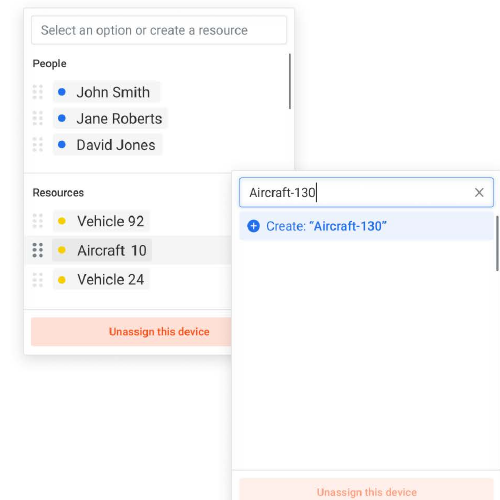
- To remove an assignment instead, select Unassign this device.
Once assigned, the device's label (person or resource name) is what your team sees on the Grid Web map and asset list, instead of its raw serial number.
Manage device settings
From Workspace Admin → Devices, admins can also update tracking interval and toggle battery reporting per device — these settings are pushed to the device over the air and show as Pending until the device has come online and received them.
Troubleshooting
- Don't see Workspace Admin in your menu: device assignment requires admin permissions — ask your workspace admin to either grant access or make the assignment for you.
- Assignment shows "Pending": settings changes are sent over the air and only apply once the device is powered on and in range — this is expected, not an error.
- Can't find the workspace key: workspace keys are emailed to the workspace admin when the workspace is set up — ask them to resend it rather than guessing.