Manual CAC Registration
Overview
Covers manually registering a new Tactical ID account using your Common Access Card (CAC) identifiers, for cases where a CAC reader / automated enrollment station isn't available. This is the "CAC Manual" path off the IdentityHub login screen, not the physical-card-swipe enrollment flow.
Prerequisites
- Your DOD UPN: a 16-digit number formatted
1234567890111111@mil. The first 10 digits are your EDIPI (from the rear of your CAC), the next 6 are your FASCN code.- Windows: retrieve via
certutil -scinfo - Mac:
pkcs11-tool --list-objectsoropensc-tool - Browser: visit
https://mtls-id-platform.mchmr.ai/and view the certificate details
- Windows: retrieve via
- Your full name and DoD email address (
first.last@branch.mil) - Knowledge of which applications you need access to (see Available Applications)
- Your unit, for the unit selection dropdown
Steps
- Go to
https://auth.mchmr.ai. - On the login screen, scroll to the bottom and click "Trouble with CAC Registration? - Click Here".

- This opens New User Registration - CAC Manual (
/if/flow/new-user-registration-cac-manual/). - Enter your DOD UPN in the format above.
- Enter your Name (first and last).
- Enter your DoD Email Address (
first.last@branch.mil). - Check the boxes for any Application Requests you need (Compass, Filecloud, Lattice, Rocketchat, Rune, Somewear, TAK, Watchtower). See Available Applications for what each one is for.
- If you checked TAK, optionally fill in Callsign, TAK Team Color, and TAK Role.
- Use Unit Selection to search and pick your unit from the org tree (e.g. AFCENT Battle Lab, Task Force 99, SOCOM, etc.).
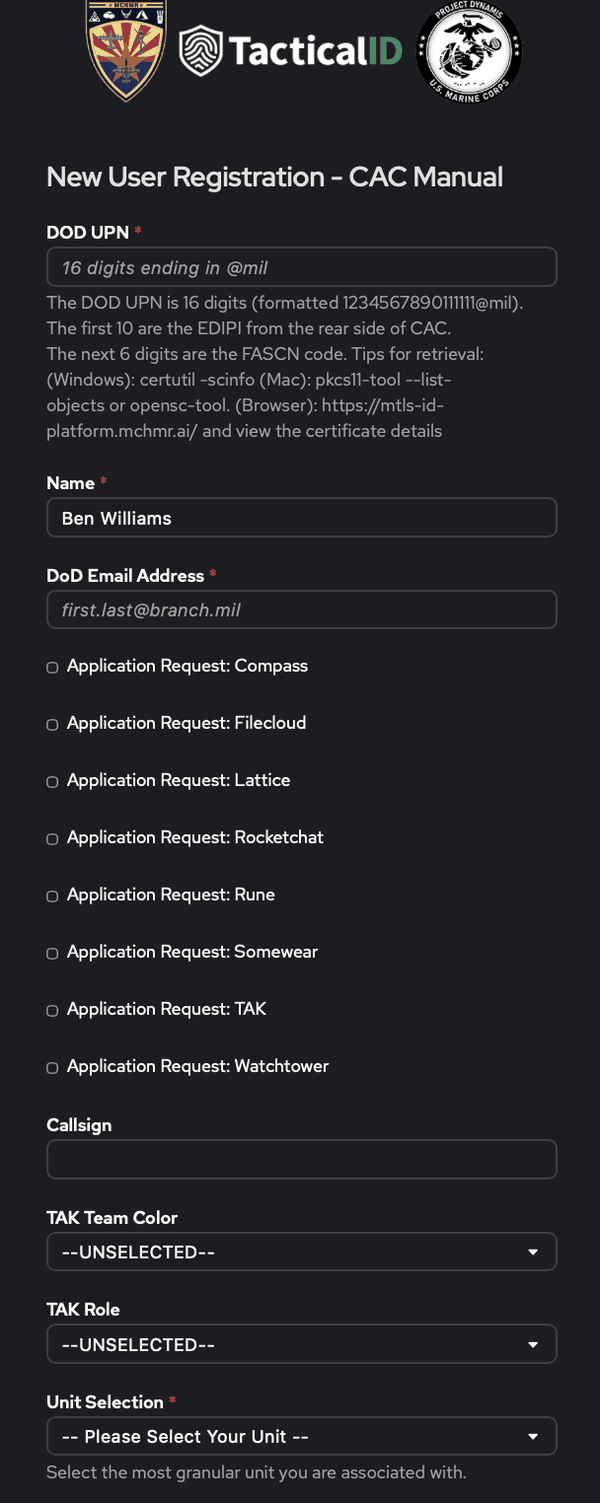
- Click Continue.
- Set a password in Password and Password (repeat), then click Continue.
- If you see "Password is too weak," add another word or two — uncommon words score better than substituting numbers/symbols into a short word.
- On success you'll see Enrollment Complete — your account is created but pending administrator approval. You'll be notified once an admin activates it. You can close the window at this point.
Troubleshooting
- "Password is too weak": the strength checker wants length and unpredictability over complexity rules — add words rather than swapping in symbols.
- Can't find your DOD UPN: double check you're reading both the EDIPI (front number set) and FASCN (trailing digits) off the CAC — see the retrieval tips under Prerequisites.
- Account stuck pending: approval is manual on the admin side — contact your Apex Edge administrator.