Non-Mil Partner Registration (United States)
Overview
Covers self-service registration for a Tactical ID / IdentityHub account (auth.mchmr.ai) for non-military partner personnel based in the United States — civilian contractors, agencies, or partner organizations — who don't have a DoD CAC. This uses the exact same registration form as Coalition Partner Registration; the difference is entirely in the values you select (Civ affiliation, United States as your country), not a separate mechanism. If your partner organization is based outside the United States, use Coalition Partner Registration instead. This is also a different entry point than New User Registration (DoD/CAC path) and Manual CAC Registration (manual CAC entry).
Prerequisites
- An email address.
- Your full name.
- Knowledge of which applications you need (see Available Applications).
- Your unit/organization — you'll select Civ for affiliation and United States for country.
- An authenticator app (Microsoft Authenticator, Google Authenticator, or similar) — MFA setup is a required part of this flow.
Steps
- Go to
https://auth.mchmr.ai. - On the login screen, click "Sign up." (below the Log in button).

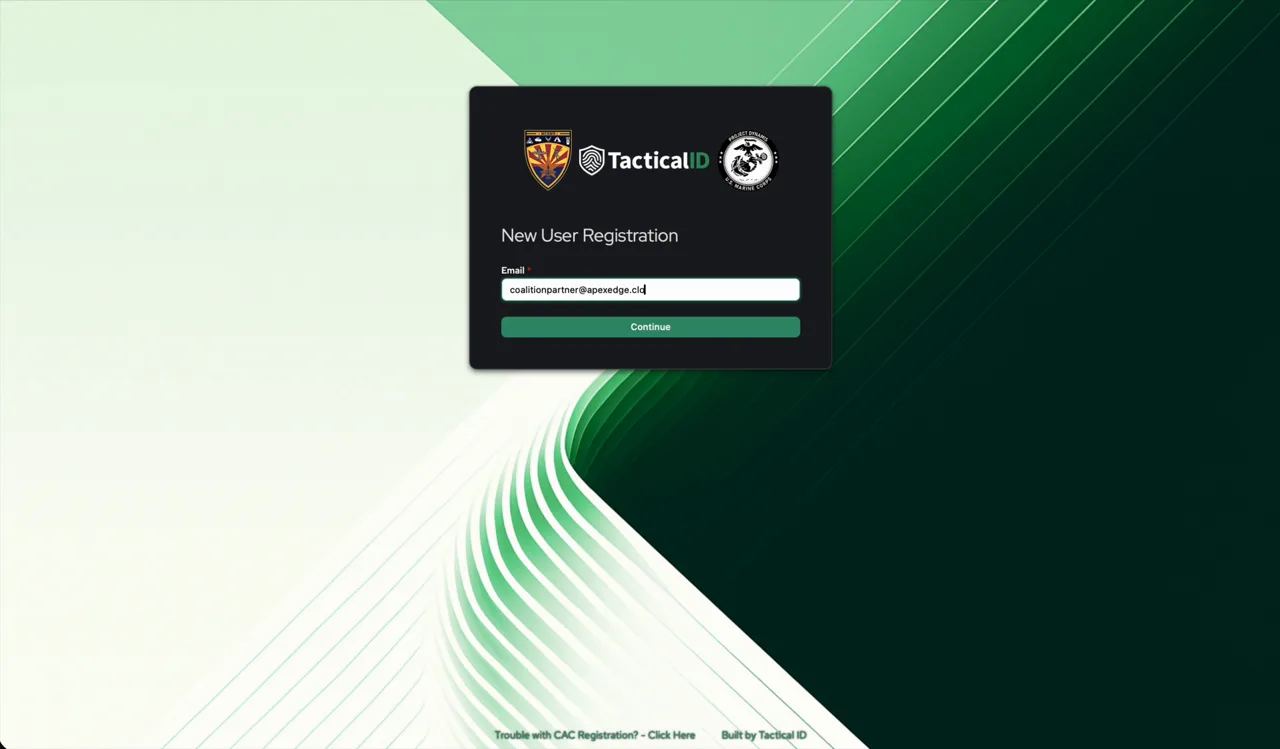
- On the New User Registration screen, enter your Email and click Continue.
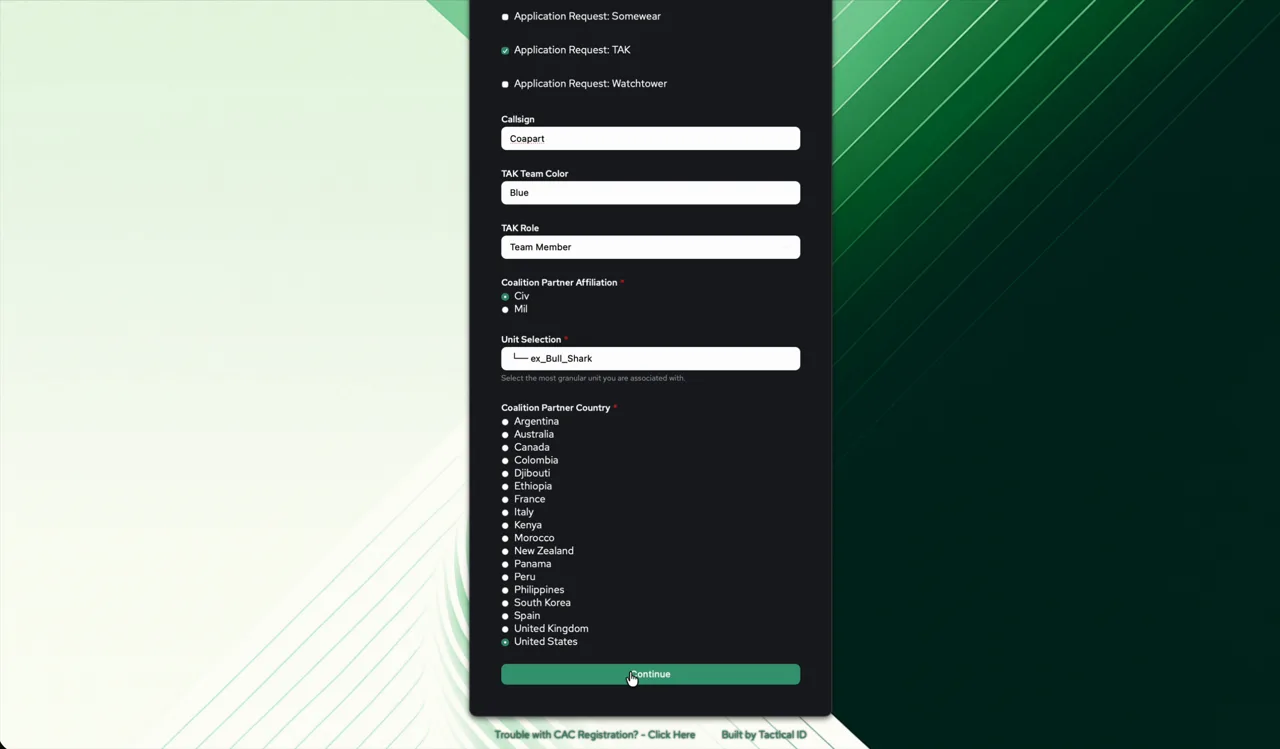
- Fill out the partner registration form:
- Full Name
- Email Address (carried over from step 3, editable)
- Application Request checkboxes — same list as Available Applications: Compass, Filecloud, Lattice, Rocketchat, Rune, Somewear, TAK, Watchtower.
- If you check TAK, three more fields appear: Callsign, TAK Team Color, TAK Role.
- Coalition Partner Affiliation — choose Civ. (The field is labeled "Coalition Partner," but it's the correct field for any non-DoD partner, foreign or domestic.)
- Unit Selection — search/select the most granular unit or organization you're associated with.
- Coalition Partner Country — select United States.
- Click Continue.
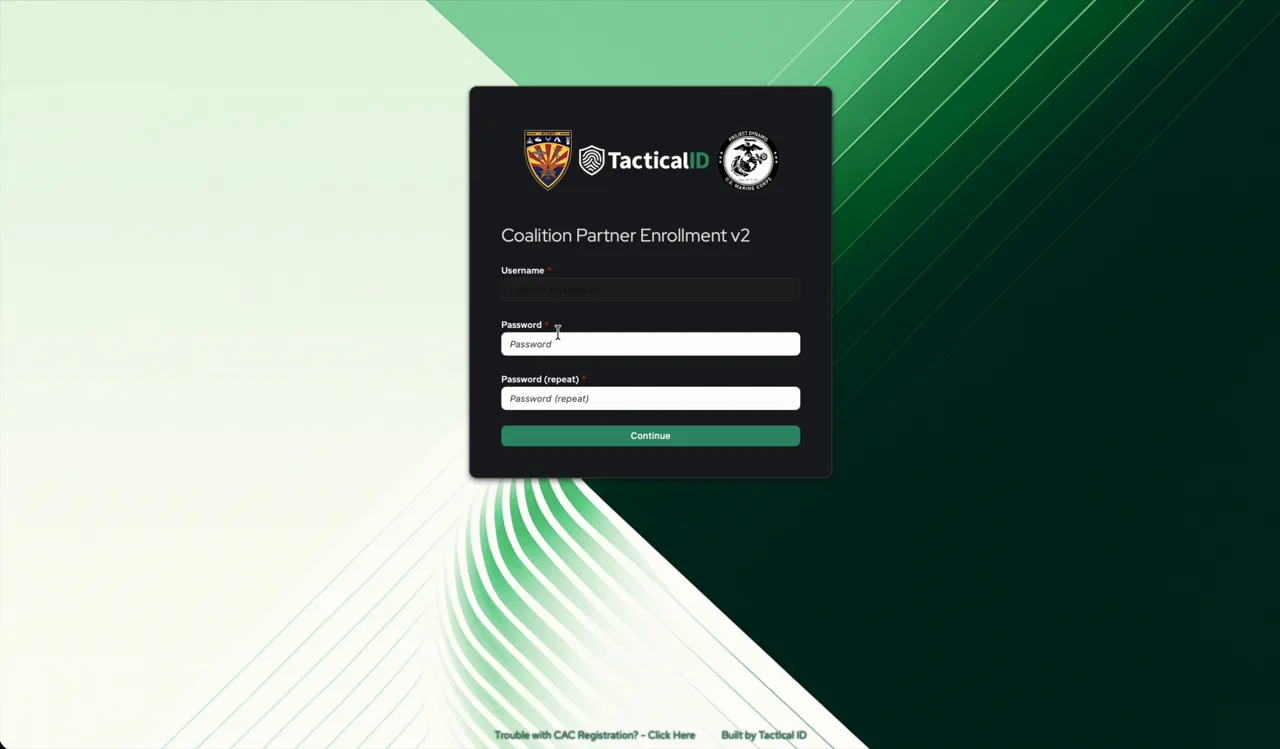
- On the next screen, set a Username and Password (+ repeat), then click Continue.
- The suggested username follows the pattern
firstname.lastnamewith a.civsuffix — matching the same convention used for DoD accounts.
- The suggested username follows the pattern
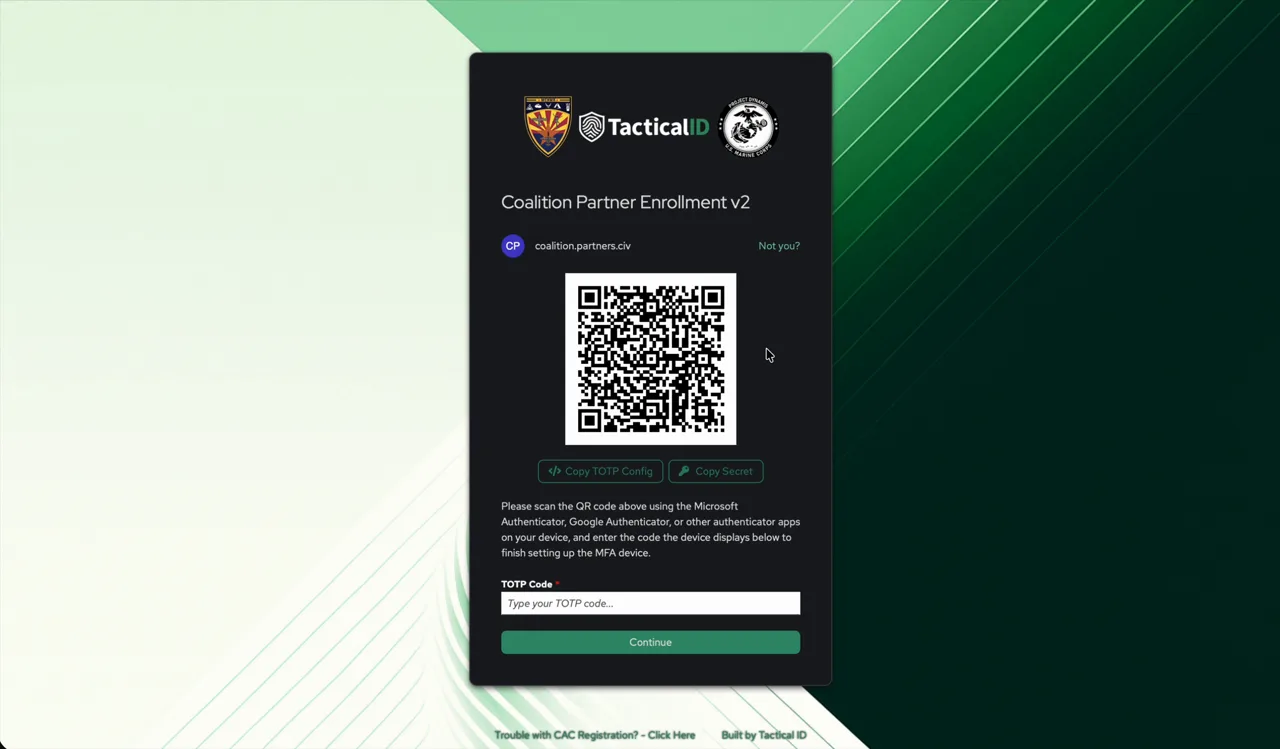
- Set up multi-factor authentication: scan the QR code with Microsoft Authenticator, Google Authenticator, or another authenticator app, then enter the code your app displays into TOTP Code and click Continue.
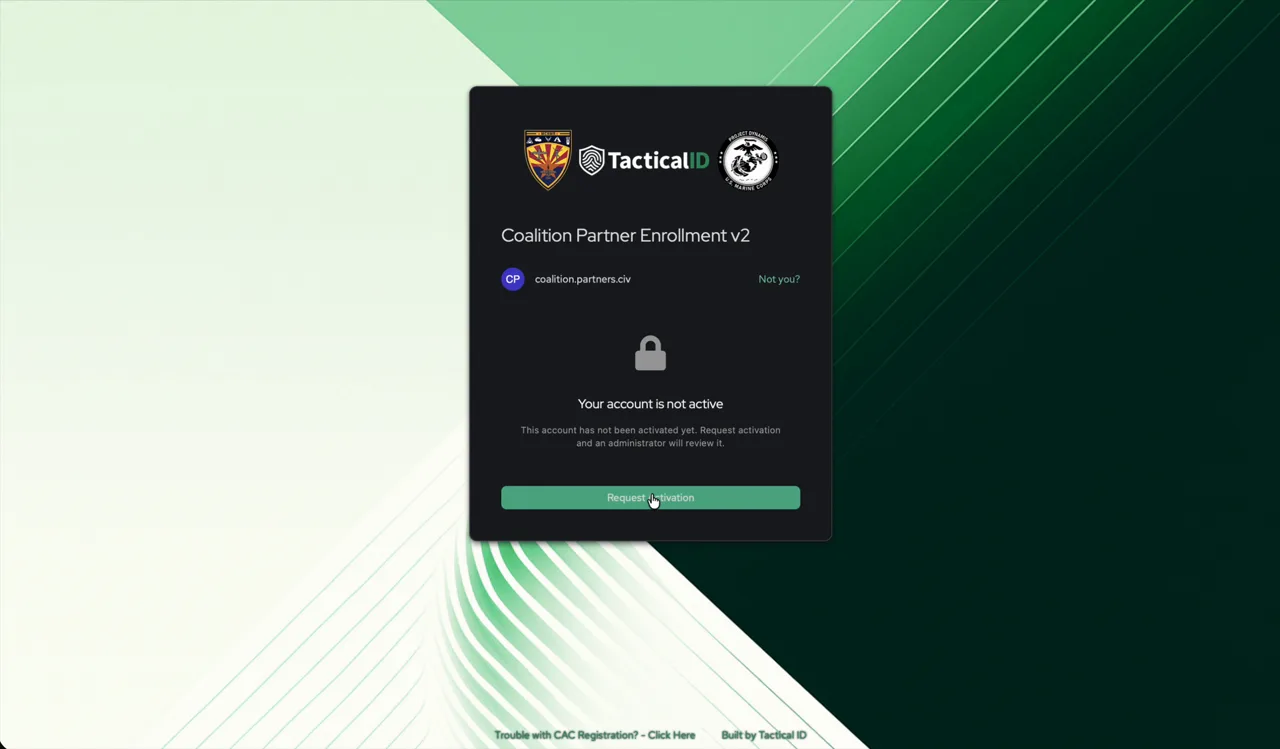
- You'll land on a screen showing your account is not active yet. Click "Request Activation." Your registration is not submitted for review until you do this — closing the browser before this step leaves it incomplete.
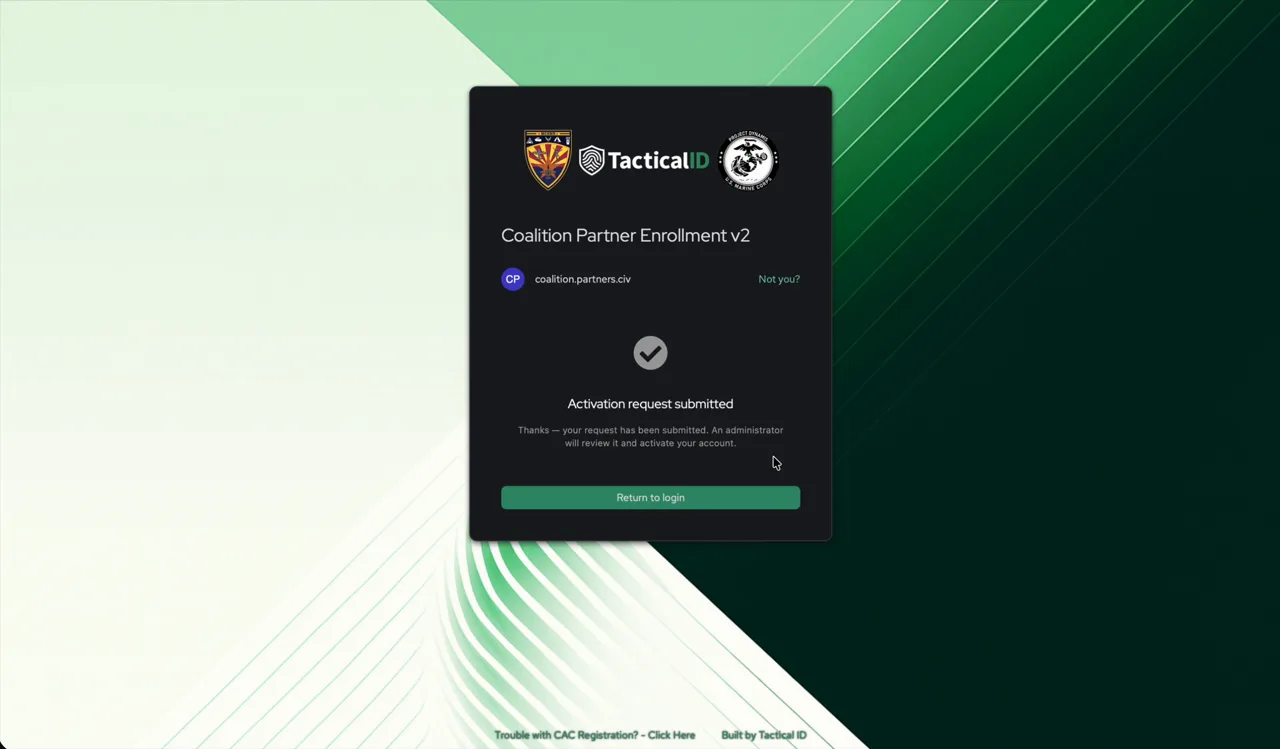
- You'll see a confirmation that your account has been submitted for approval. Once an administrator approves it, you'll get an email letting you know you can log in.
Troubleshooting
- Ended up on the DoD registration screen instead: the routing is based on the email domain you enter in step 3 — use the email address associated with your partner organization, not a
.miladdress. - TAK fields don't appear: check the TAK application request box first; Callsign/Team Color/Role only show up conditionally.
- Can't find United States in the country list: it's a standard entry in the Coalition Partner Country dropdown, listed alongside other countries — there's no separate domestic-partner grouping.
- Registration seems stuck before approval: confirm you actually clicked Request Activation on the account-not-active screen — the account is not submitted for review until that button is clicked.
- Lost or don't have an authenticator app: install one (Microsoft Authenticator, Google Authenticator, or similar) before starting registration — MFA setup can't be skipped.
- Account stuck pending: approval is manual on the admin side — contact your Apex Edge administrator.