TAK ICU — RTSP Stream Configuration
Overview
TAK ICU is a video-streaming capability for TAK, used to bring live RTSP camera or drone video feeds onto the map alongside your other situational awareness data. This guide covers configuring TAK ICU to broadcast a device's video feed over RTSP to MCHMR, then verifying and assigning it in Compass.
Prerequisites
- TAK ICU installed on the device.
- The device's assigned broadcast alias and group (confirm with your Apex Edge administrator if you don't have these).
Steps
- Open TAK ICU.
- Tap Allow on the permissions prompt.
Screenshot pending — TAK ICU permissions prompt.
- Tap the hamburger menu.
- Tap the Settings cog.
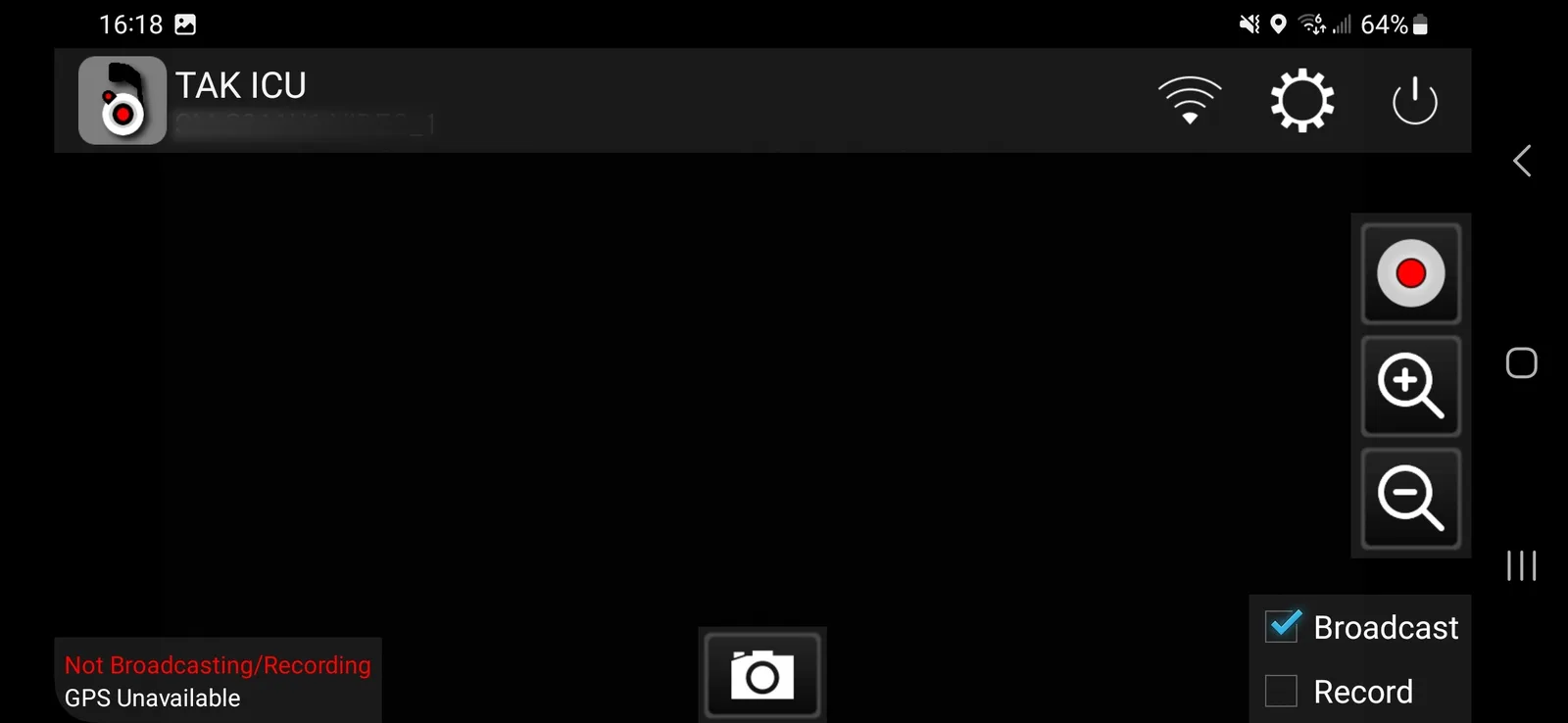
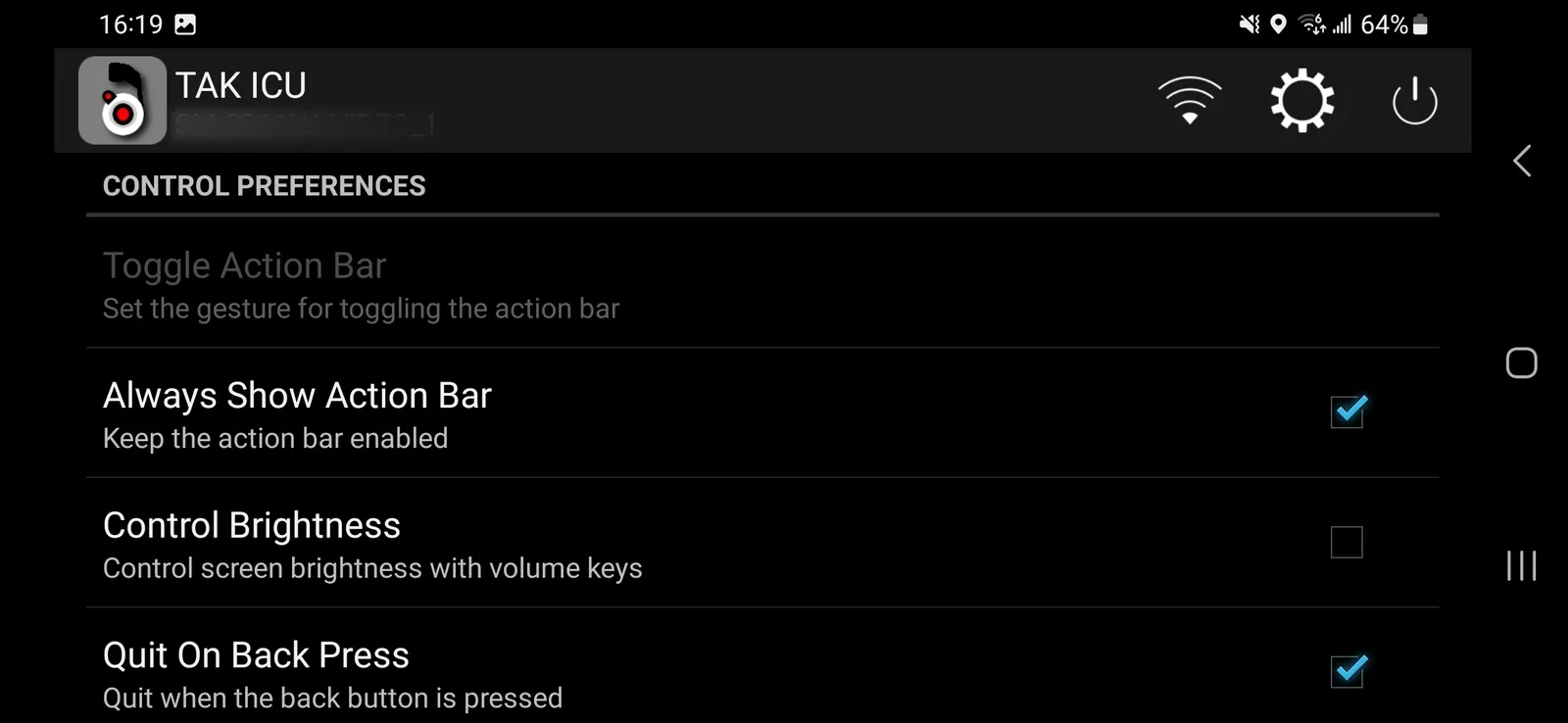
- Go to Control Preferences and turn on Always Show Action Bar.
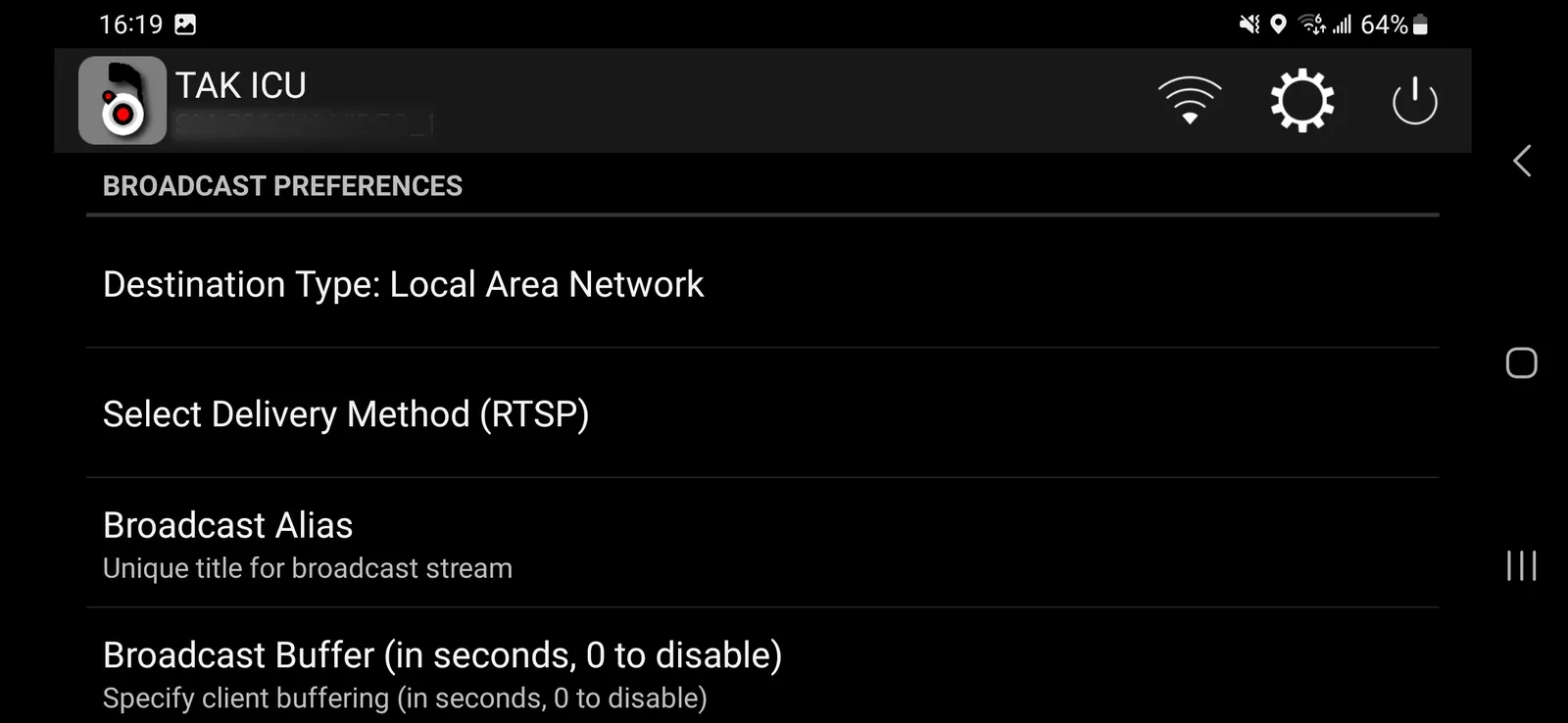
- Go to Broadcast Preferences and set:
- Destination Type: Local Area Network
- Delivery Method: RTSP
- Broadcast Alias: your device's assigned alias (e.g.
AB-C_00X) - RTSP Server Address:
compass.mchmr.us:554/[broadcast alias]/group/[group name]— substitute your device's actual broadcast alias and assigned group
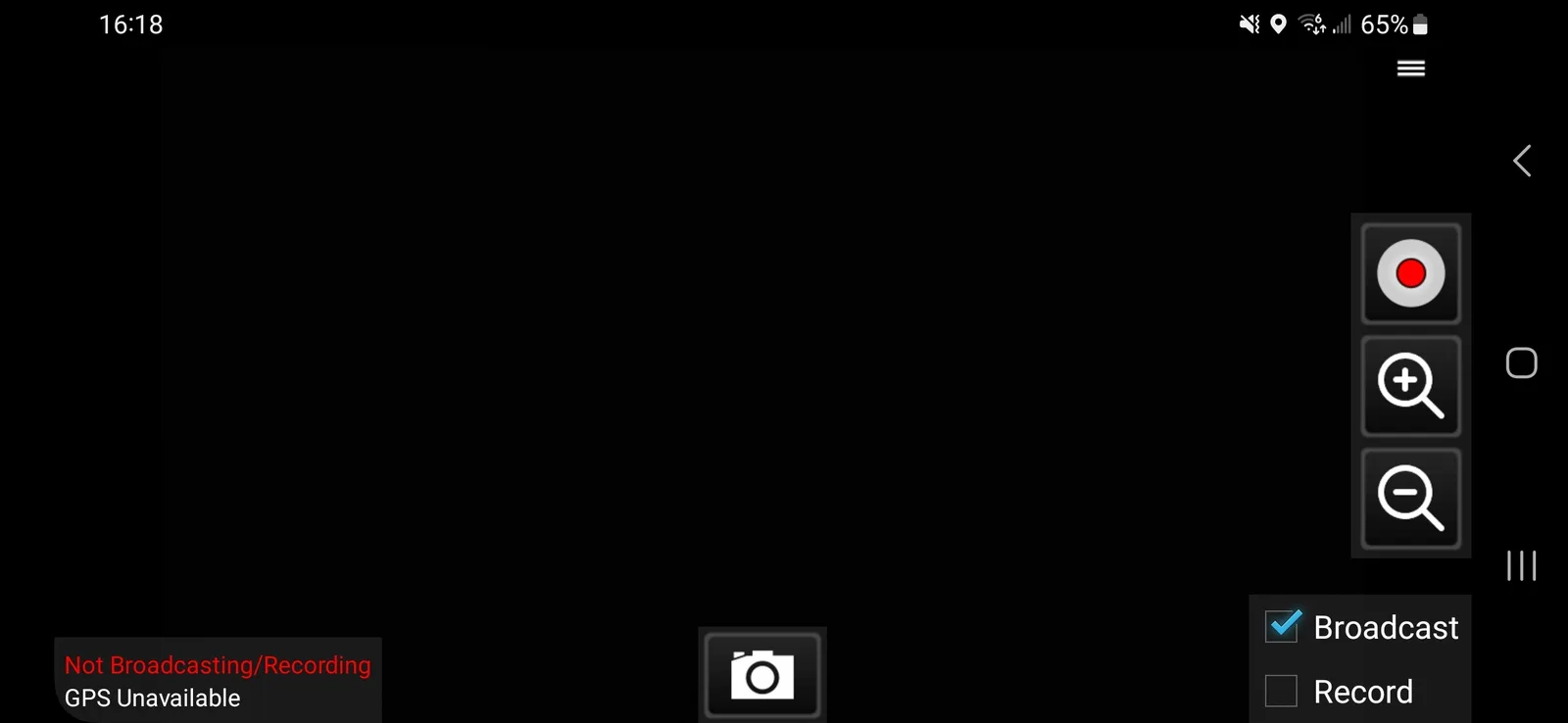
- Open the Settings cog and broadcast for about 2 seconds using the Record button on the device's row in the table.
- In Compass, locate the device, confirm its location data is coming through, and assign it to the correct group.
Screenshot pending — the device located and verified in Compass.
Troubleshooting
Not yet documented — no troubleshooting scenarios were supplied for this module yet.