Setting Your Location Manually
Overview
WinTAK normally gets your position from a GPS source. A desktop or laptop often doesn't have one, so WinTAK shows a NO GPS warning and your position isn't on the map. This module shows how to place yourself on the map by hand.
Prerequisites
- WinTAK connected to
tak.mchmr.us(see Logging In (LDAP) or Logging In (OAuth)).
Steps
-
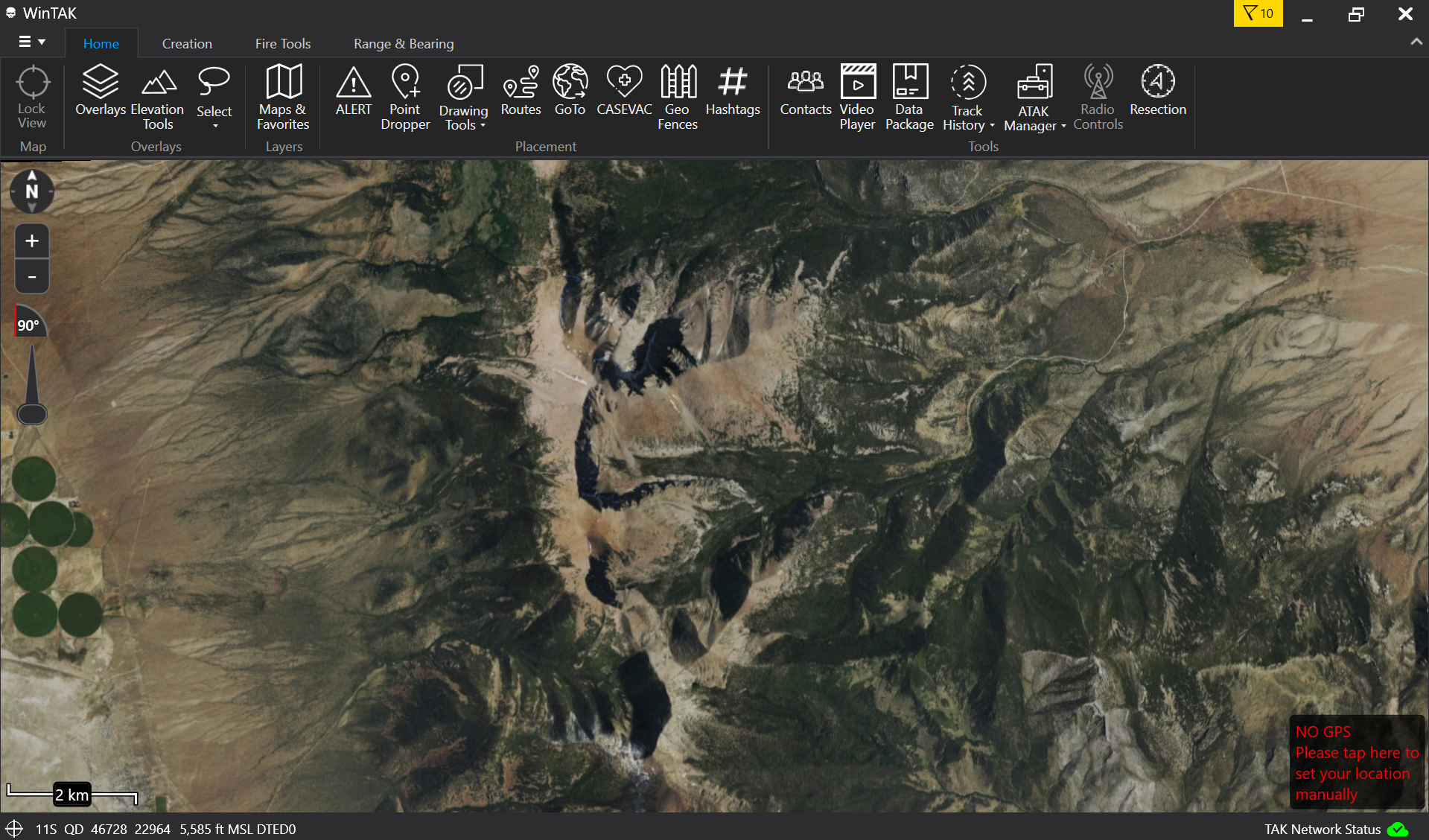
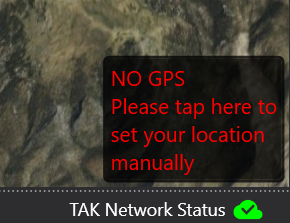
Look at the bottom-right corner of the map. If WinTAK has no GPS source, a red message reads NO GPS — Please tap here to set your location manually. Click it.
-
A green prompt, Click your current location, appears at the top of the map.

-
Pan and zoom the map if needed, then click the spot on the map where you are. A blue arrow marks your position.
-
Check the bottom-right corner. The message now shows your Callsign and your position (grid, elevation and heading). The coordinates at the bottom-left of the window update to match.
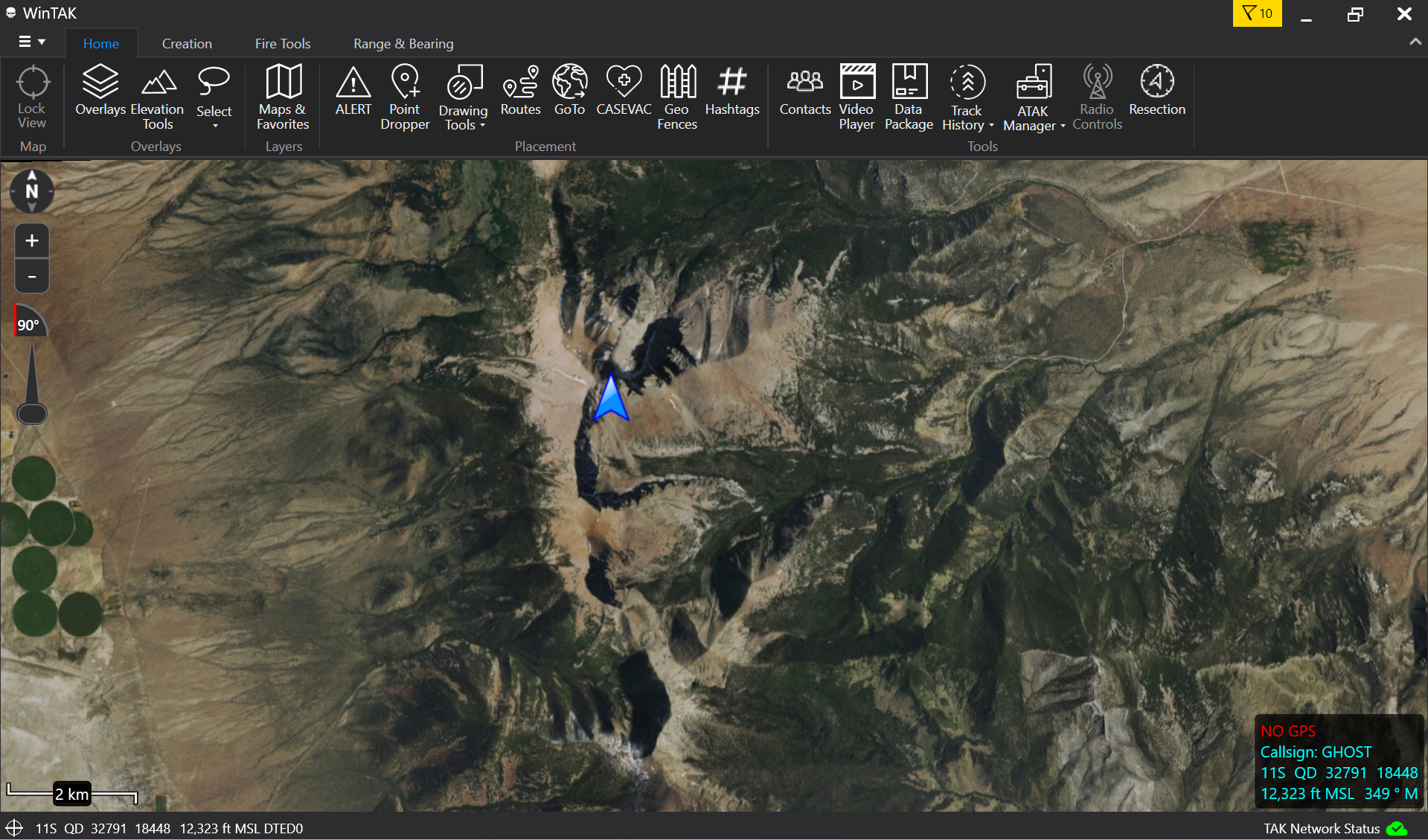
The status box still says NO GPS after you set your location. That is expected: the position is one you entered, not one reported by a GPS receiver.
Troubleshooting
- No NO GPS message in the bottom-right corner: WinTAK already has a position source, so you don't need to set one manually.
- Placed your location in the wrong spot: click the NO GPS message again and click the correct spot.
- Green prompt is showing but nothing happens when you click: make sure you are clicking on the map itself, not on the toolbar above it.